Can Klack make typing on your Mac more satisfying?

A few years ago, I was really into mechanical keyboards.
I used to spend a lot of time in mechanical keyboard communities on Reddit. I built two keyboards myself (Lily58 and a custom 60% keyboard), and bought a small collection of different sets of key switches and keycaps.
Even though I really loved the feeling and sound of mechanical keyboards, eventually I settled on the Logitech Ergo K860, which I have been using for the last four years.
A few months ago, I stumbled upon an interesting app called Klack. At the time, I dismissed it because the idea sounded silly to me. Last week, however, I decided to give it a try.
What Klack actually does
Klack is a simple app that does one thing: it plays a mechanical keyboard sound whenever you press a key.
At $4.99, it costs much less than buying a mechanical keyboard.
Setting it up is simple. After opening Klack, you need to grant it Accessibility access so it can respond to your keystrokes.
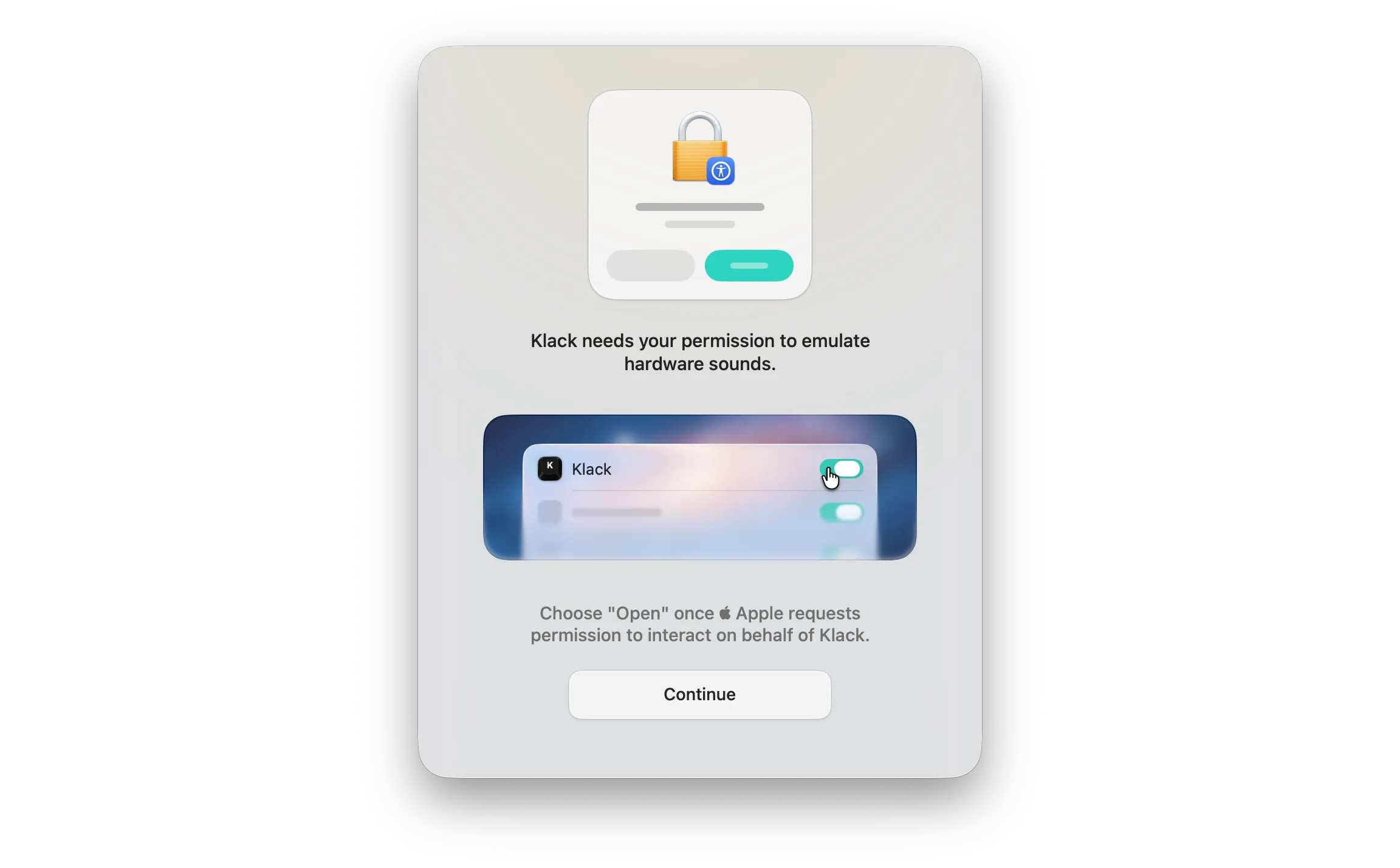
My first few keystrokes
Klack comes with seven sound profiles, but the onboarding screen lets you choose from only five. The other two become available from the menu bar after setup.
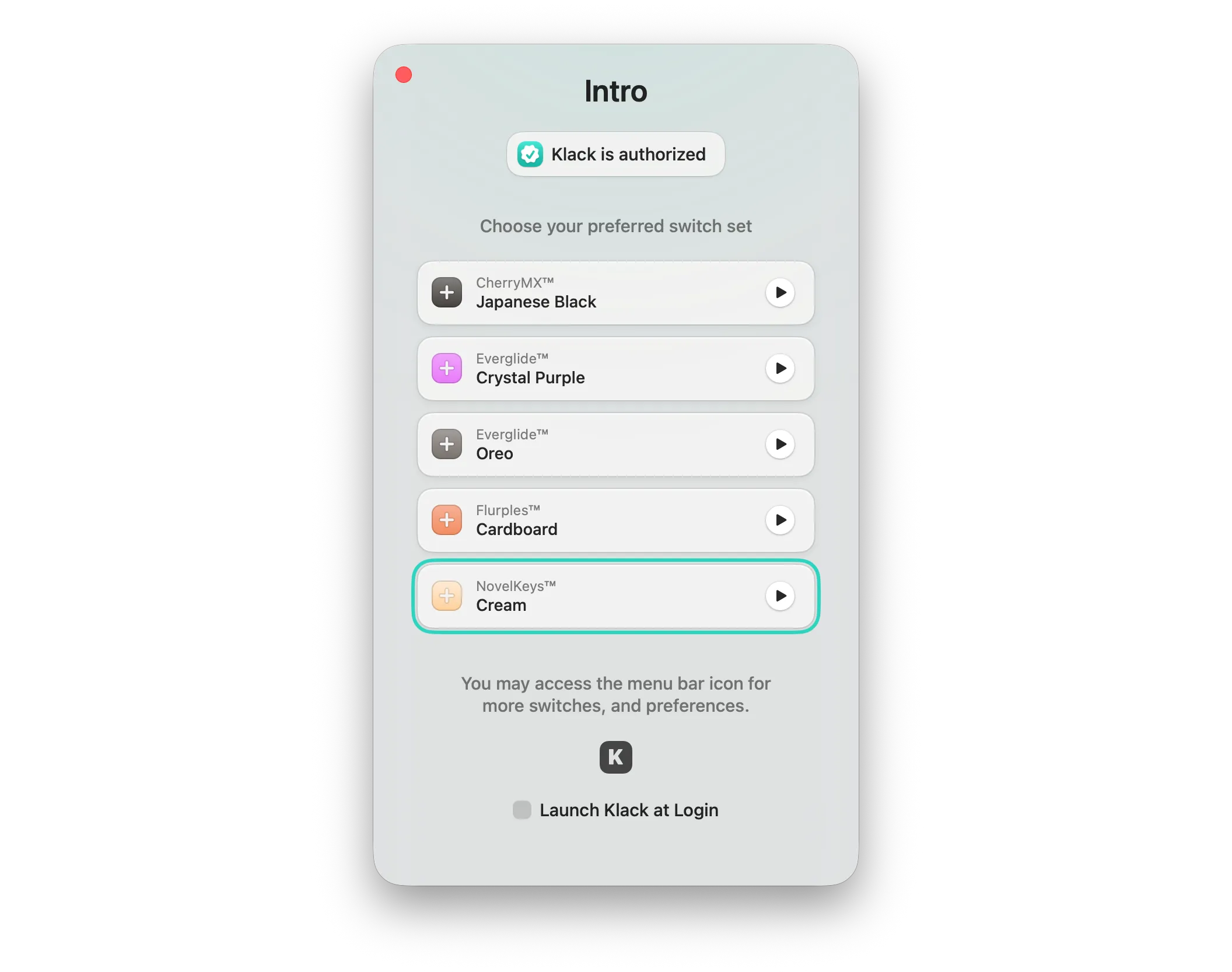
You can preview each sound profile from the onboarding screen. I had never used any of the physical switches these profiles were based on, so they were all new to me. I chose NovelKeys Cream because it sounded best to me.
I first tested Klack using my MacBook’s built-in keyboard and speakers.
I didn’t notice any delay between pressing a key and hearing its sound. Even so, the first ten minutes felt strange because my familiar MacBook keyboard suddenly sounded like a different device. After a while, the sounds stopped standing out and began to feel like a natural part of typing.
Does it feel like a mechanical keyboard?
The sound quality in Klack is excellent. To my ears, it sounds very close to a real mechanical keyboard. Of course, Klack cannot change how the keys feel under my fingers, but the sound alone is surprisingly convincing. This is probably because each sound profile contains more than 100 audio files that were recorded and mastered individually.
I also tried Klack while using my MacBook in clamshell mode. I typed on my Logitech K860, while the sound came from the built-in speakers of my LG 27UP850 monitor. Because the speakers were farther away from the keyboard, the illusion was less convincing. Klack worked best when the sound appeared to come from the keyboard itself.
I then tried the same setup with my AirPods. The experience became more convincing again because the sound no longer seemed to come from the monitor. It felt closer and more connected to each keystroke.
I noticed another weakness when I pressed the same key repeatedly and very quickly. Instead of sounding like a mechanical keyboard, it reminded me of a running horse. This is probably an edge case, but I encounter it because of a bad Vim habit. Instead of jumping directly to another line, I sometimes move through the file by repeatedly pressing J or K. Klack has an option to ignore rapid key events, which I assumed would help with this issue, but enabling it didn’t make much difference in my case.
Living with Klack
At first, I expected to play with Klack for a few hours and then disable it for good. I didn’t expect it to fit my daily workflow so well.
I tried all seven sound profiles, but NovelKeys Cream, which I chose during setup, remained my favorite.
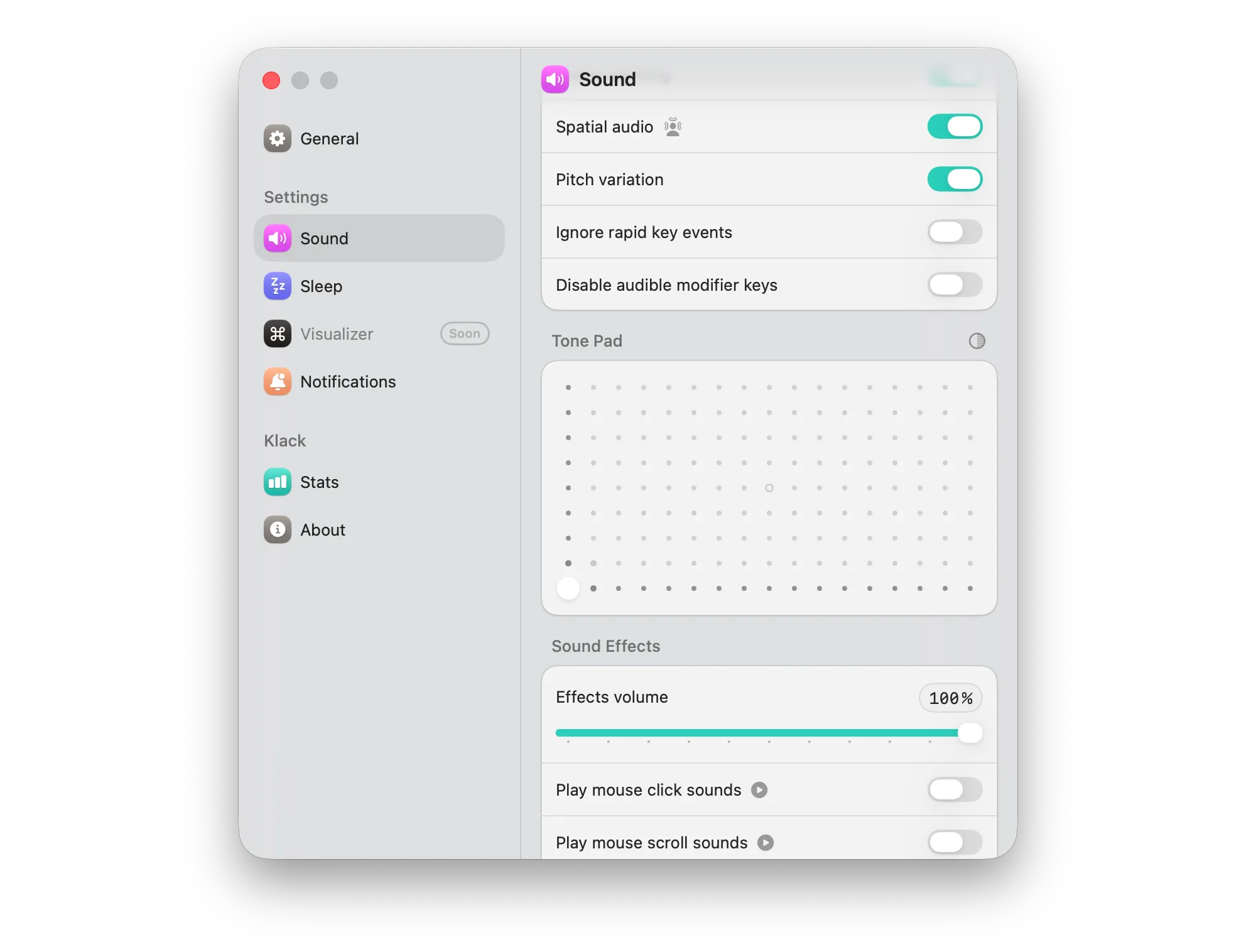
I also liked the Tone Pad, which lets you change the tone of the key sounds. You can make them sound thick and dull or sharp and bright. I prefer a deeper, more thocky sound. After adjusting the tone, I also found the running-horse effect from repeated keystrokes less noticeable.
After using Klack for a week, I still don’t feel tired of it. Even when I use my MacBook in clamshell mode and the sound comes from my monitor’s built-in speakers, it doesn’t bother me much anymore.
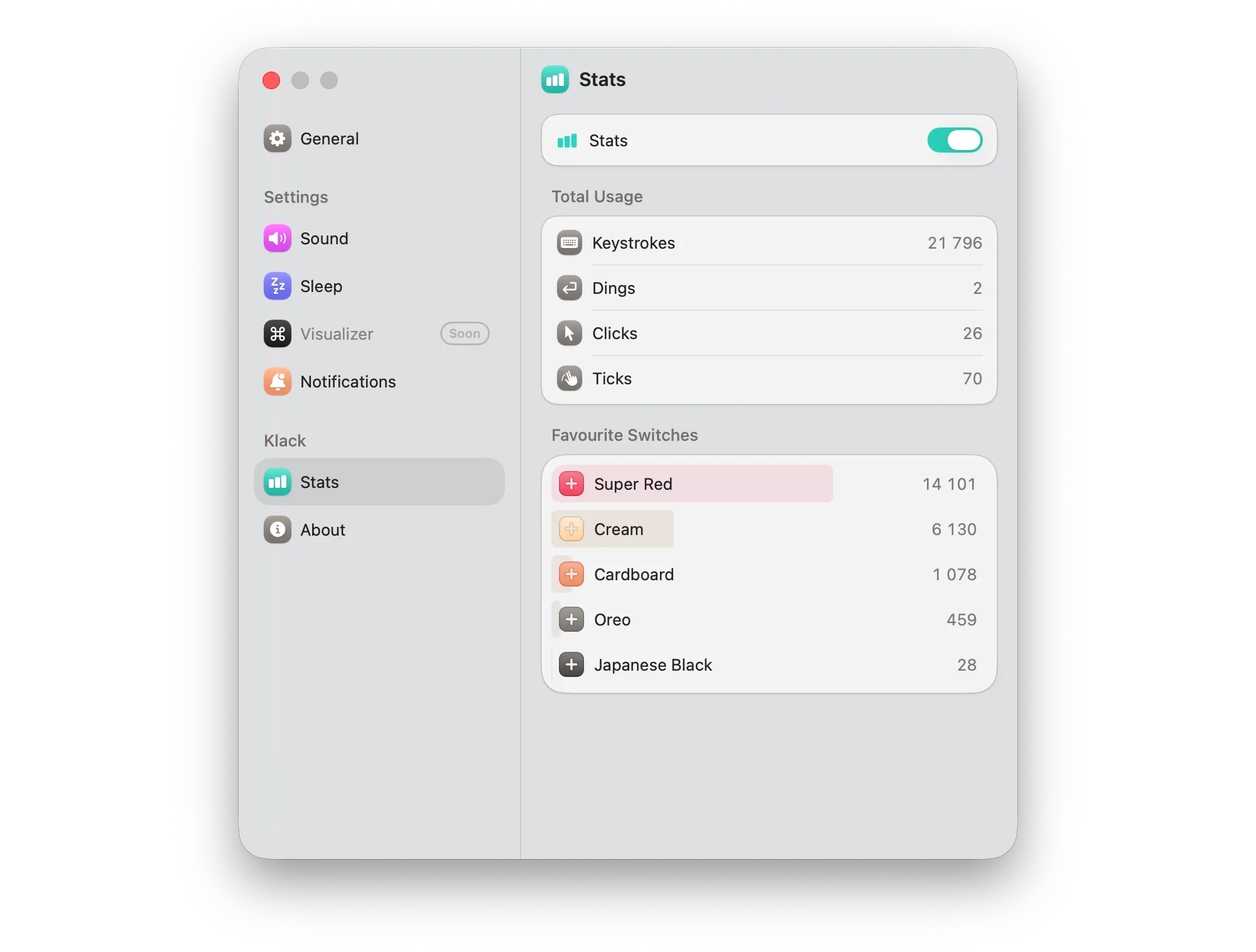
Another nice addition is the stats tab. It shows how many keystrokes you have typed and which sound profiles you have used most. However, tracking is disabled by default, and I only enabled it the day before finishing this article. This is why Super Red appears at the top of my screenshot, even though Cream remains my favorite.
Can Klack make typing more satisfying?
For me, the answer is yes. Klack doesn’t turn a regular keyboard into a mechanical one because it can’t change how the keys feel. However, the sound alone makes typing more enjoyable than I expected.
I initially dismissed Klack as a silly idea. After using it for a week, it no longer feels like that. The sounds became a natural part of typing, and I plan to keep using the app. I might revisit and update this article in six months or a year to see whether I’m still using it.
At $4.99, Klack was easily worth the price for me. I would recommend it to anyone who enjoys the sound of a mechanical keyboard but doesn’t want to replace their current keyboard.
You can learn more about Klack on its website or download it from the Mac App Store.