AppCleaner and the files Mac apps leave behind

How I normally uninstall Mac apps
Until now, uninstalling an app on my Mac was simple. I opened the Applications folder, moved the app to the Trash, and assumed that was the end of it.
I knew that apps could store settings and other files outside the Applications folder, but I never paid much attention to them. Most of these files are probably small, and searching for them manually would take more effort than removing them was worth.
Now that I test more apps for MacBorn, I may also remove them more often. This made me curious about AppCleaner, a free utility that promises to uninstall an app together with the files it leaves behind.
A few weeks ago, I planned to write a review of Maccy, a clipboard manager for Mac. I installed it on both of my MacBooks and waited for it to become useful.
That never happened. I used my Mac without a clipboard manager for years, and even after installing Maccy, I continued working exactly as before. Eventually, I abandoned the review.
Since I no longer needed Maccy, it became a good candidate for testing whether AppCleaner was more useful than simply using the Trash.
What gets left behind?
Many Mac apps are installed by moving a single app icon into the Applications folder. This makes them look like one file, but they may create additional files after you start using them.
These files can include settings, caches, logs, and other data stored in the Library folder. Moving the app itself to the Trash does not necessarily remove any of them.
Leaving a few small preference files behind probably will not make a noticeable difference. However, these files can accumulate as you install and remove apps over time. Some apps may also leave behind larger caches or downloaded resources.
Removing these files manually is possible, but finding them is not always easy. They can be stored in different folders, and their names are not always the same as the name of the app.
After years of uninstalling apps this way, my disk eventually became almost full. The Storage section in System Settings helped me remove some files, but System Data occupied much more space and offered no clear way to clean it up. I eventually needed a separate tool to find where all my Mac storage had gone.
How AppCleaner works
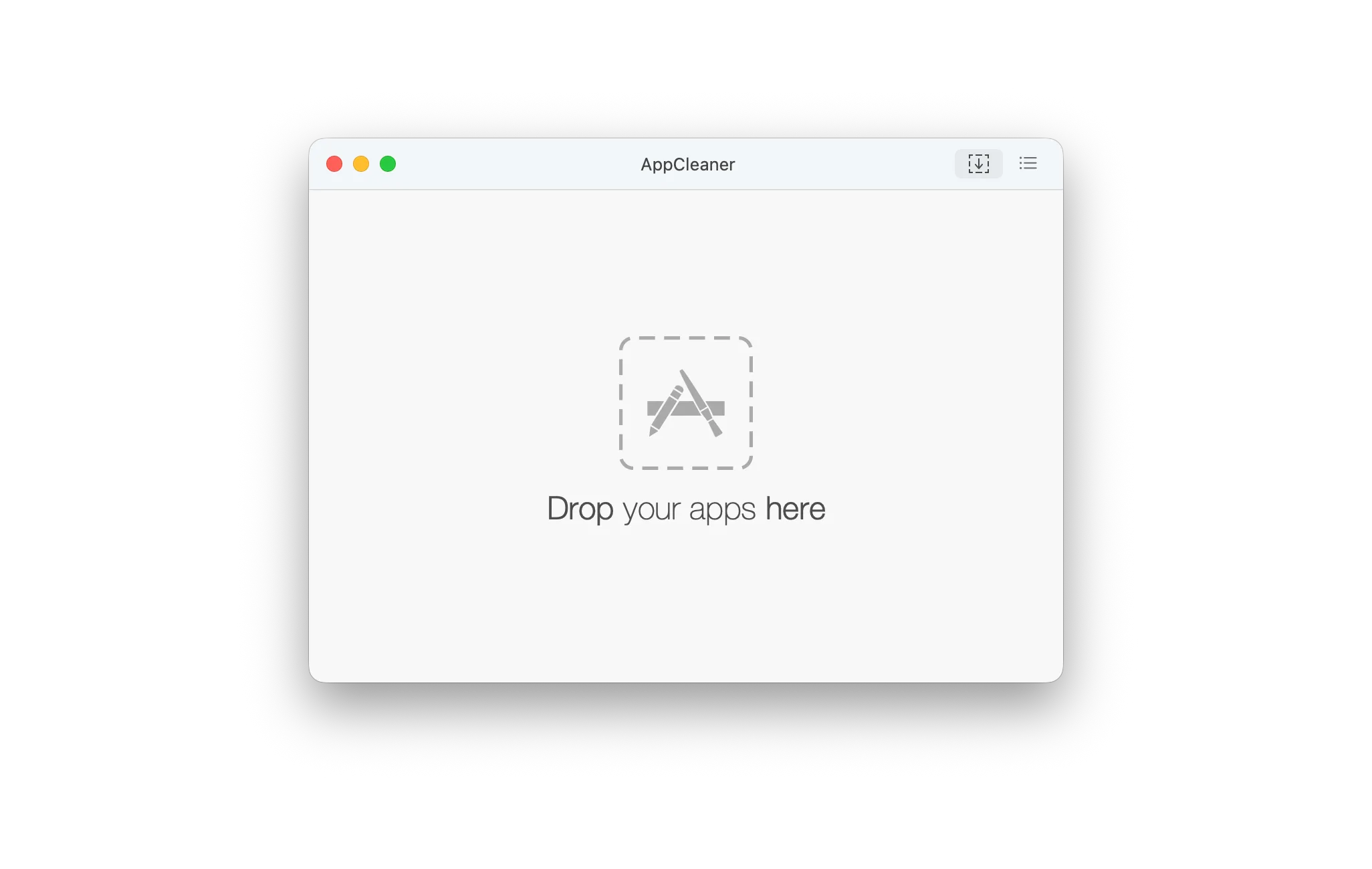
AppCleaner is built around a very simple workflow. You drag an app into its window, and it searches the Mac for files related to that app.
It then shows everything it found in a list. The app itself is selected together with its related files, but you can review the list and deselect anything you do not want to remove.
This is important because I would not want an app to delete files without showing me what it found first. AppCleaner still requires me to make the final decision, but it does the difficult part of finding the files.
There is not much else to learn before using it. AppCleaner is free, and its interface is focused almost entirely on dropping in an app and removing the files it finds.
Uninstalling an app with AppCleaner
I dragged Maccy into AppCleaner and expected it to find a few small preference files. Instead, it found three items occupying 184 MB.
The Maccy app itself was only 10.6 MB. AppCleaner also found an empty Application Scripts folder and a container occupying 173.4 MB. Almost all the space associated with Maccy was stored outside the Applications folder.
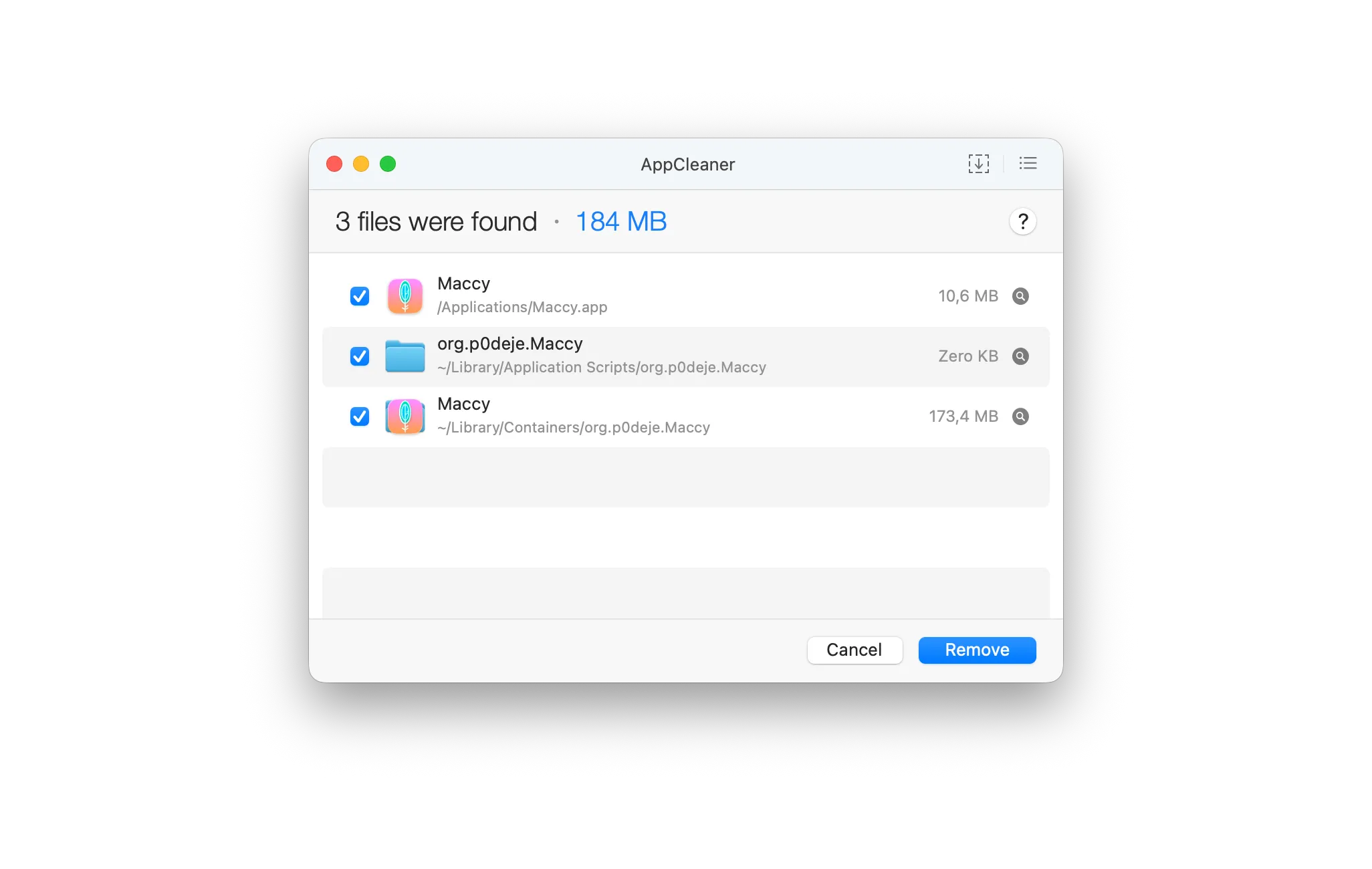
Most of that container was taken up by Maccy’s stored clipboard history. When I reinstalled Maccy, my previous clipboard history was still there because the container had remained on my Mac.
This showed that leftover files are not always unwanted. Keeping them can be useful if I plan to reinstall an app. However, if I wanted to remove Maccy completely, I probably would never have noticed the 173.4 MB it left behind.
A much larger example
Maccy was a useful test, but I wanted to see what AppCleaner would find for a larger app. I dragged UTM into it without intending to remove anything.
AppCleaner found 29.51 GB of files. The UTM app itself occupied only 1.22 GB, while its container occupied 28.29 GB. This container included the virtual machines I had installed.
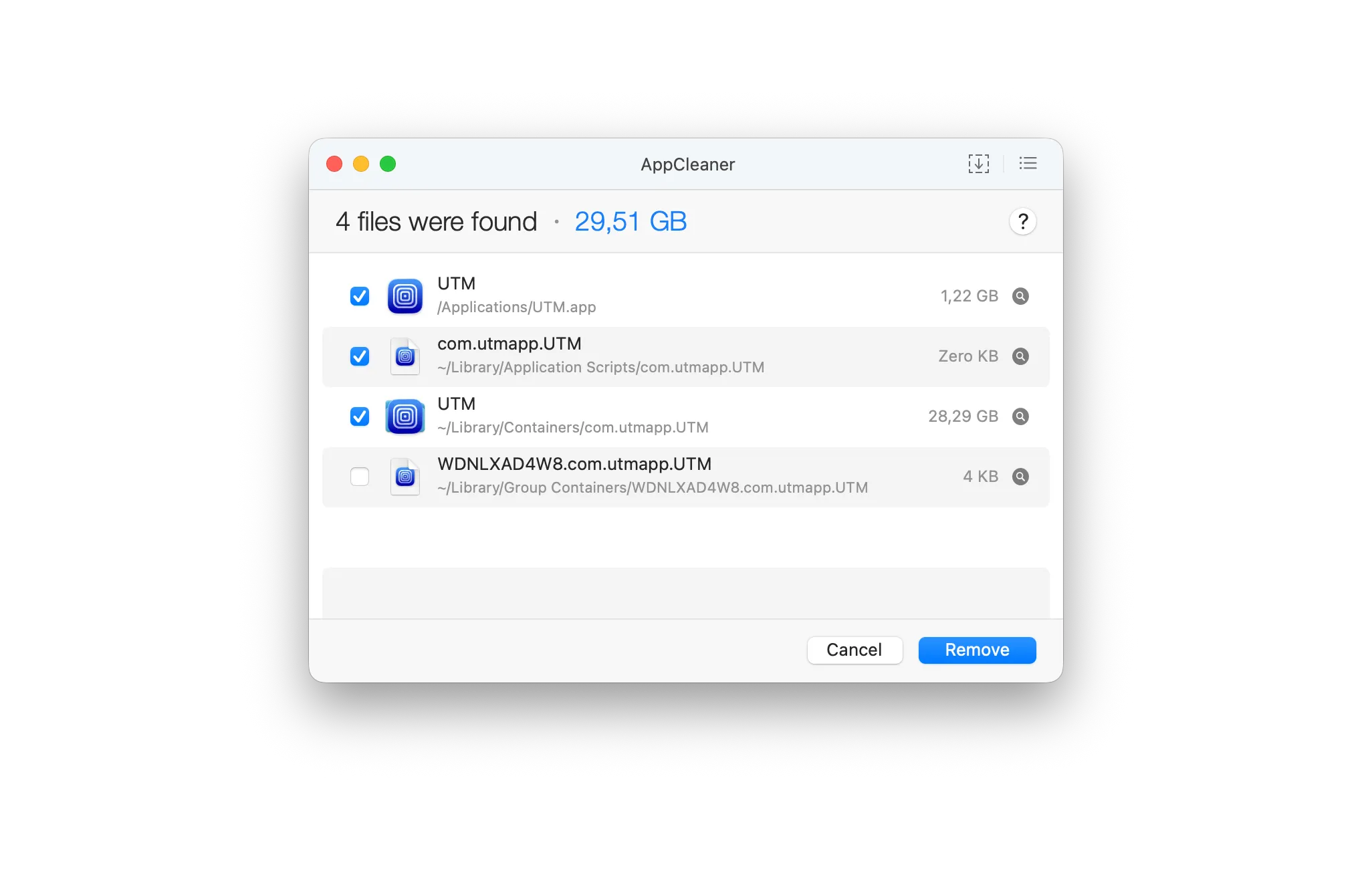
Moving only UTM to the Trash would leave all those virtual machines behind. This could be useful if I planned to reinstall the app, but it would also leave almost 30 GB on my disk if I wanted to remove UTM completely.
This example also showed why I should inspect AppCleaner’s list before clicking Remove. AppCleaner correctly found the related data, but it could not know whether I wanted to keep my virtual machines.
Is AppCleaner better than using the Trash?
AppCleaner has changed how I uninstall apps from my Mac. It makes uninstalling an app almost as simple as moving it to the Trash, but it also finds the files stored elsewhere on my Mac.
The Maccy test showed that even a small app can leave behind much more data than the app itself. The UTM example made the difference even clearer. Depending on the app, related files can occupy tens of gigabytes.
However, I would not remove everything without checking the list first. Some files may contain settings or other data I want to keep for a future reinstall. In the case of UTM, deleting its container would also delete my virtual machines.
I will probably use AppCleaner whenever I want to remove an app completely. It does not require any extra work beyond reviewing the files it finds, and it can prevent forgotten data from slowly accumulating on my Mac.
AppCleaner is free, simple, and useful enough to earn a place in my Applications folder. You can download it from the official AppCleaner website.