Opening RAR files on a Mac without the command line

All archives I receive are ZIP files. Mac can open them without any additional software, so I never need to think about which app to use.
However, one of my coworkers occasionally sends me RAR files. It does not happen often, but it is always annoying when it does.
Until now, I extracted these files using RAR command-line tools in Terminal. They work, but I use them so rarely that I never remember the exact command (unrar -e). I have to look it up each time another RAR file arrives. Using Terminal to extract files is not very convenient either.
This small annoyance gave me a reason to try Keka. It is a Mac app for creating and extracting archives. It supports many archive formats, including RAR files. I wanted to see whether it could make opening a RAR file as easy as opening a ZIP file.
Trying Keka
When you launch Keka, it opens a window for creating archives. You can select a compression format and change its related settings. When I dropped a file onto the window, Keka created an archive in the same folder as the original file.
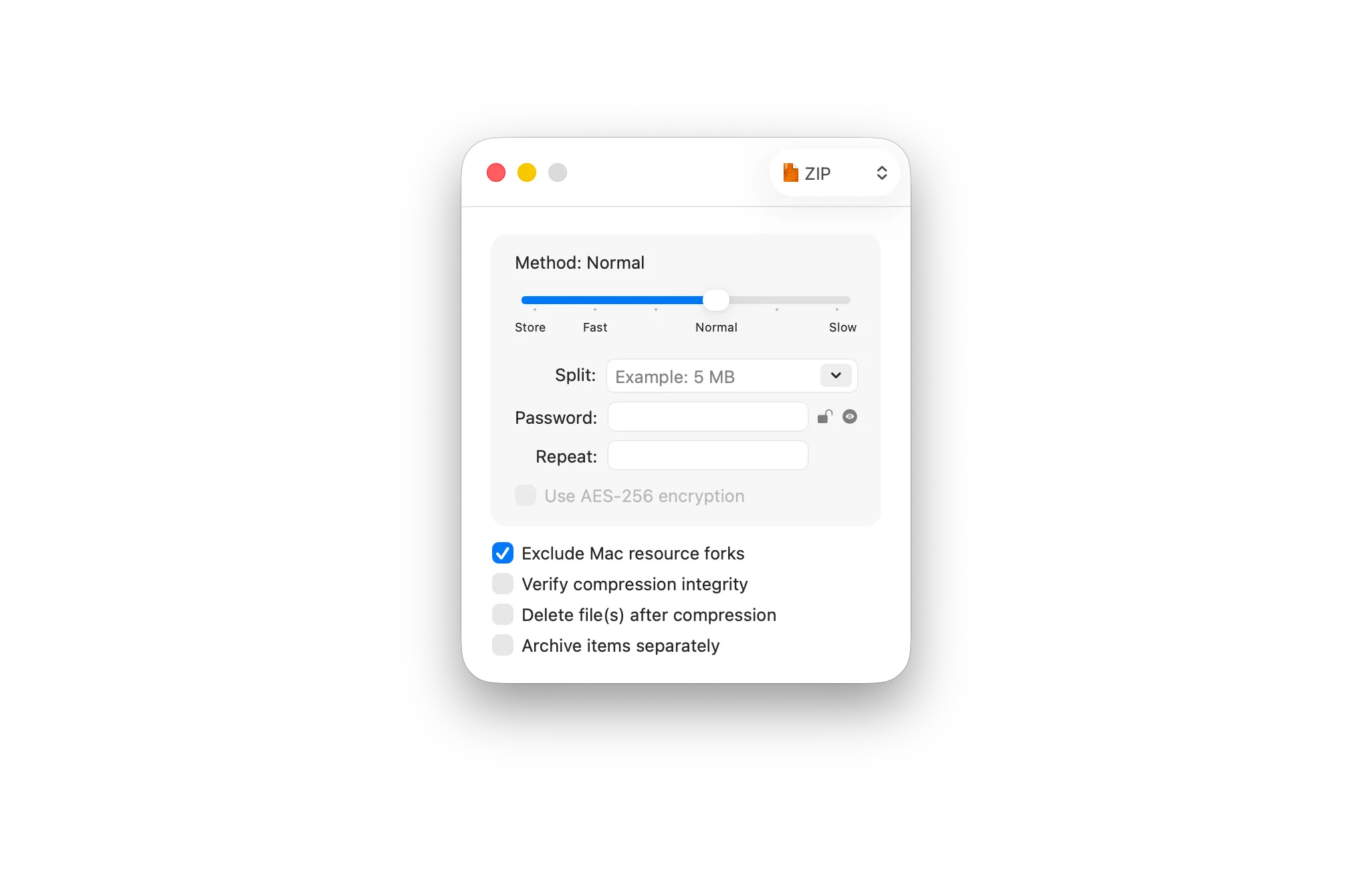
Creating an archive was easy. However, for creating a simple ZIP file, using the Compress option in Finder was more convenient. Keka also adds its own compression actions to Finder’s context menu. In my simple test, I could not see much advantage over the built-in option.
Extracting a RAR file was easy too. All I had to do was double-click the file. Keka extracted its contents next to the archive.
You can change where extracted files are placed in Keka’s settings. Keka can ask for a location every time, use a custom location, or extract the files next to the archive.
I also enabled two additional options. The first moves an archive to the Trash after extracting it. The second prevents Keka from extracting .DS_Store files.
What else Keka offers
Keka supports many more archive formats than common ones such as ZIP and RAR. It can create 7Z, ZIP, TAR, DMG, ISO, and several other formats. It can also extract more than 30 different archive formats.
It also provides more control when creating an archive. You can protect an archive with a password, split a large archive into smaller parts, or choose a compression level.
Is Keka worth keeping?
I will keep Keka installed. I may only need it occasionally, but opening a RAR file with a double-click is much easier than looking up a command and using Terminal every time.
I do not expect Keka to replace Finder for creating simple ZIP files. Finder’s built-in Compress option is already more convenient for that. I also do not need most of Keka’s formats or advanced settings at the moment. Still, it is good to have those options available in case I receive a less common archive format that I need to extract.
Keka is available for free from its website. You can also buy it from the Mac App Store for €7 if you want to support the developer.